
Authentication
Learn more about ‘Authentication’ and the different login options to your intranet
Authentication User Journeys
Manual Login
Steps
- When presented with the login screen for your ‘Intranet’
- Below your companies name input your ‘Email address’
- Input your ‘Password’
- Select ‘Login’
- You will be redirected to your intranets ‘Homepage’

Manual Login
MFA (Multi Factor Authentication)
Steps
- Follow steps 1-4 from ‘Manual Login’
- Input your ‘Mobile number’ to receive an authentication code

Multi Factor Authentication
- Select ‘Send Code’
- Input the ‘Code’ that you received to your phone
- Select ‘Login’
- You will be redirected to your intranets ‘Homepage’
SSO (Single Sign-On)
Steps
- When presented with the login screen for your ‘Intranet’
- Below the heading ‘Login in to your account’ select ‘Login with (SSO Provider)’
- You will be redirected to your intranets ‘Homepage’
Note: Once this has been selected you will no longer be required to ‘Login’ again Single Sign On
Forgotten Password (Manual Login)
Steps
- When presented with the login screen for your ‘Intranet’
- Select the ‘Forgot Password?’ link located below the two input fields
- Input your ‘Email Address’
- Access your emails to access the link to reset your ‘Password’
- You will be redirected to the ‘Create Password’ screen
- Input your ‘New password’ – ‘Confirm password’
-
-
- Note: Your password must contain:
- At least 10 characters
- 1 digit
- 1 lowercase letter
- 1 uppercase letter
- Note: Your password must contain:
-
-
- Select ‘Login’
- You will be redirected to your intranets ‘Homepage’
Forgotten Password
Note: if you do not receive an email select ‘Email not received’ for another one to be sent to you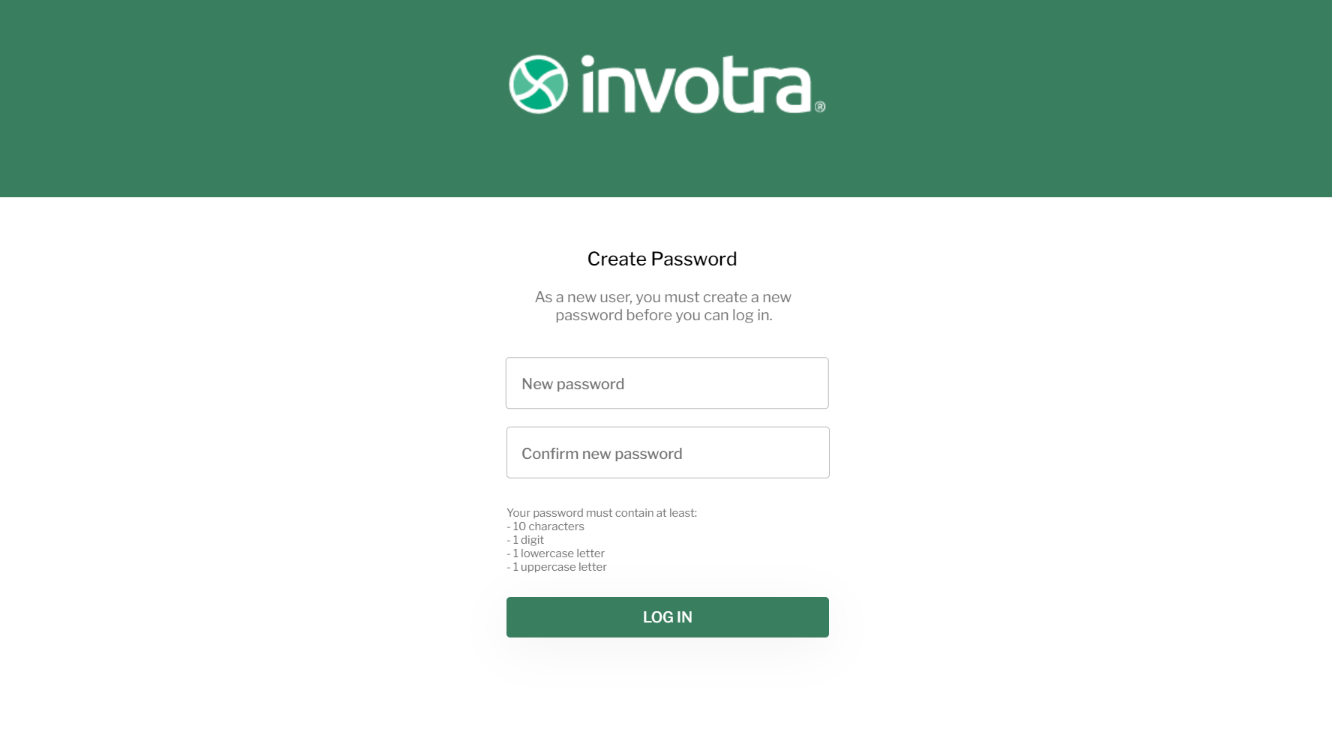
Forgotten Password (MFA)
Steps
- When presented with the login screen for your ‘Intranet’
- Select the ‘Forgot Password?’ link located below the two input fields
- Input your ‘Mobile number’
- Select ‘Send code’
- Input the 6 digit code that was sent to your ‘Phone’
- Select ‘Reset Password’
- You will be redirected to the ‘Create Password’ screen
- Input your ‘New password’ – ‘Confirm password’
-
-
- Note: Your password must contain:
- At least 10 characters
- 1 digit
- 1 lowercase letter
- 1 uppercase letter
- Note: Your password must contain:
-
-
- Select ‘Login’
- You will be redirected to your intranets ‘Homepage’
Note: if you do not receive an code select ‘Code not received’ for another one to be sent to you
Temporary Password
Steps
- As a new user to your ‘Intranet’ you will receive a ‘Welcome email’ from your ‘Administrator’ – within this email will be a ‘Temporary password’
- When presented with the login screen for your ‘Intranet’
- Input your email address and temporary password in the two available fields
- Select ‘Login’
- You will be redirected to the ‘Create Password’ screen
- Input your ‘New password’ – ‘Confirm password’
-
-
- Note: Your password must contain:
- At least 10 characters
- 1 digit
- 1 lowercase letter
- 1 uppercase letter
- Note: Your password must contain:
-
-
- Select ‘Login’
You will be redirected to your intranets ‘Homepage’
Couldn't find what you're looking for?
We're here to help. Please raise a support request via our help desk and we'll get back to you asap