
Multimedia
Learn more about ‘Multimedia’
What's New
The new intranet update includes significant improvements and changes.
Improvements applied to existing features and functionality include:
-
- Left Hand Side (LHS) - the LHS of the users screen has now been prioritised for just content creation.
- Right Hand Side (RHS) - the RHS Draw is now the ‘administrative’ section of the content types.
- Configuration Panel - Is now located at the bottom of the content type and contains ‘Engage’, ‘Links’, ‘Promote’, ‘Search’, ‘Tags’ and ‘Target’
- WYSIWYG Options - Post update when you access the WYSIWYG you will see the options specific to your role
- Workflow and Revisions - Menu items now have workflow and revisions
Create
Create ‘Multimedia’
Steps
- Navigate to the ‘Workbar’ and select the ‘Create’ icon (+)

Create icon
- Select “Multimedia” under the “Content” heading
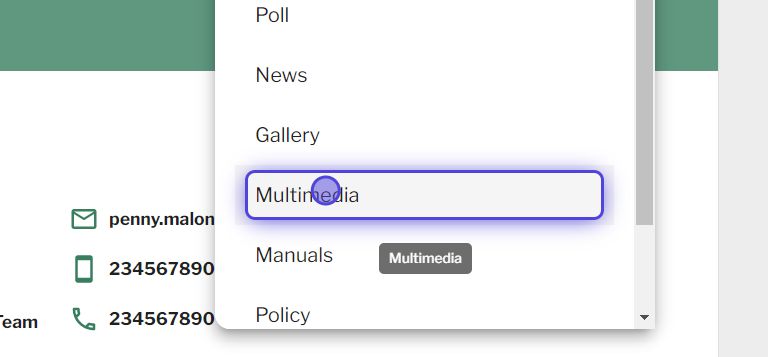
Select multimedia
- You will be directed to the ‘Create Multimedia’ screen.
- Give your ‘Multimedia’ a title

create multimedia
- To add text and other elements into the body of the ‘Multimedia’, click on ‘Start typing’ .
- Add a file in the Media section by selecting ‘Choose File’ and select your file.
- Selecting the ‘Choose File’ button will open the “File Library” – you can add multiple files at once
- To change the “Order” of the files “Select” the two ‘Drag Lines’ to the left of the file and reorder the position of the file.

Two drag lines to change order of files
- To “Delete” a file select the “Delete” icon to the right of the file
Image styles (including image aspect ratios) and optimised sizes
| Image Style/Aspect Ratio | Visual Reference | Suggested size before upload | Scale |
| 1:1 |  |
Width: 960px Height: 960px |
This style can scale up or down in widgets or on a page |
| 2:1 |  |
Width: 960px Height: 480px |
This style can scale up or down in widgets or on a page |
| 4:3 |  |
Width: 960px Height: 720px |
This style can scale up or down in widgets or on a page |
| 5:7 |  |
Width: 960px Height: 1344px |
This style can scale up or down in widgets or on a page |
| 16:9 |  |
Width: 960px Height: 540px |
This style can scale up or down in widgets or on a page |
View Multi-media
Be able to view a ‘Multi-media’
Steps
- Navigate to a ‘Multi-media‘ that you would like to view
- Select the ‘Multi-media‘
- Select ‘+ Create Multi-media Page’ to create a new ‘Multi-media’
- Select the ‘Overflow’ menu located in the top right corner (‘Three dots’) in order to:
- ‘Edit’ – You will be able to ‘Edit’ the content if you are the ‘Author’
- ‘Clone’
- ‘Delete’ – You will be able to ‘Delete’ the content if you are the ‘Author’ or ‘Admin’
- ‘Revisions’
- ‘Workflow’
- Located at the top of the content underneath the title of the ‘Multi-media‘ you will be able to:
- View the ‘Author‘
- Select the ‘Author’s’ name to be redirected to the ‘Author’s’ profile screen
- View the ‘Published‘ date
- Be able to ‘Save‘ the content
- Be able to ‘Like‘ the content and see who else has ‘Liked’ it
- Be able to ‘Comment‘ on the content and view existing ‘Comments’
- View the ‘Author‘
- Any ‘Tags‘ related to the content will be located underneath the ‘Body/Description’
- The ‘Multi-media’ is located underneath the ‘Tags’
- The type of ‘Content’ in the ‘Multimedia’ is indicated to the right of the item. For example:
- ‘Doc’
- ‘Image’
- ‘Audio’
- ‘Video’
- The type of ‘Content’ in the ‘Multimedia’ is indicated to the right of the item. For example:
- To ‘Comment’ on the ‘Content‘:
- Select ‘Add a comment here‘ underneath the ‘Comments‘ heading
Admin
Includes options for:
- Organising content
- Managing workflow
- Adding a featured image
- Attachments
- Revisions
Configure
Includes options for:
- Links
- Tags
- Targeting,
- Promote
- Commenting options
Demo
Couldn't find what you're looking for?
We're here to help. Please raise a support request via our help desk and we'll get back to you asap