
Bart Support
Groups
Learn more about ‘Groups‘
What’s New
The intranet wide update in August 2023 includes significant improvements and changes.
In addition to there being new features and functionalities there have been changes made to the current areas on the intranet. Some of the changes surrounding Social Apps (Message Wall, Ideas, Groups, Queries & Blogs) are:
Admin Tab – The admin tab is now accessible from within the section of the social app. Here you can now administer:
- The category (Message Wall, Ideas, Groups & Queries)
- Comment options
- App Icon
Dashboard – Dashboard chart headers have been updated to have standardised labeling across social apps
Group posts – Group posts create experience now includes updated WYSIWYG options
Groups – Home
View the ‘Groups’ homepage
Steps
-
- Navigate to the ‘Workbar’ and select ‘Apps’ and then ‘Groups’’

Select Apps
- You will be directed to the ‘Groups’ homepage
- From the home screen you can:
- Search for ‘Groups’ using the ‘Search Bar’
- Create a new ‘Group’
- View existing ‘Groups’
- Sort by order or created date
- Filter by content types or ‘Group’ categories
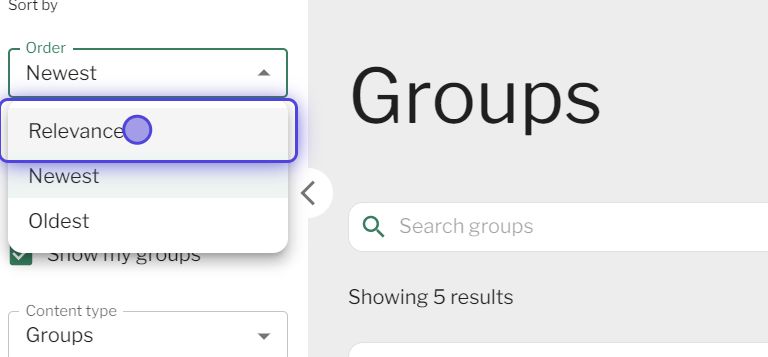
Sort by
- You also have the ability to view these tabs:
- ‘Home’
- ‘Dashboard’
- ‘Manage Groups’
- ‘Admin’
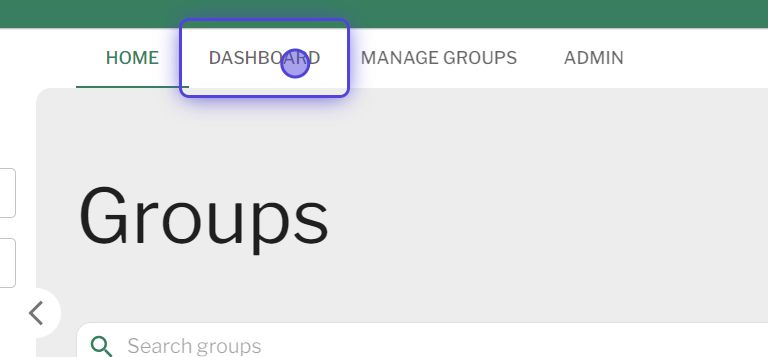
Select Dashboard
- Navigate to the ‘Workbar’ and select ‘Apps’ and then ‘Groups’’
Access Groups
View the ‘Groups’ of your choice.
Steps
-
- Navigate to the ‘Workbar’ and select ‘Apps’ and then ‘Groups’’
- You will be directed to the ‘Groups’ homepage
- Select the ‘Group‘ of your choosing
- You will be presented with the ‘Group‘ ‘Home‘ tab and be able to its contents
- Select the ‘Members‘ tab to see the people in the ‘Group‘
- Select the ‘Docs‘ tab in order to access all of the documents in the ‘Group‘
- Select the ‘Three dots‘ to the right of the ‘Doc‘ in order to ‘View, Edit, Clone, Move, Delete‘
- Select the ‘Dashboard‘ tab in order to see an overall review of the ‘Group‘
Groups – Dashboard
View the ‘Groups’ Dashboard
Steps
-
- Navigate to the ‘Workbar’ and select ‘Apps’ and then ‘Groups’
- You will be directed to the ‘Groups’ homepage
- Select the ‘Dashboard’ tab
- From here you will be able to:
-
- Sort by Time range
-
- And view metrics for the following:
-
- Group counter
- Most popular
- Groups by content
-
Groups – (Create/Edit form)
Create a new ‘Group’
Steps
-
- Navigate to the ‘Workbar’ and select ‘Apps’ and then ‘Groups’’
- You will be directed to the ‘Groups’ homepage
- Select ‘CREATE GROUP’

Create Groups
- Give the ‘Group‘ a
- Group name
- Choose a category
- About
- Privacy setting
-
- ‘Public‘
- ‘Private‘
- ‘Secret‘
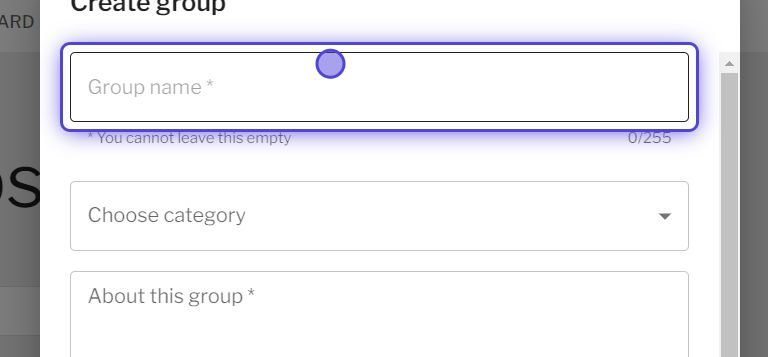
Create Group
-
Group view
Be able to view a ‘Group’
Steps
-
- Navigate to the ‘Workbar’ and select ‘Apps’ and then ‘Groups’’
- You will be directed to the ‘Groups’ homepage
- Select a desired Group
- Here you will be able to:
-
- Like
- Save
- Comment
- View other comments
- Ability to leave a Group
-
- If the Group is private and you are not a member of the Group then you will be able to select the Group and “Request access” but you will not be able to view any content until you have the permissions.
- For a Group that is secret you will not have any access to the content and will not be able to request access to join the Group.
Group admin
Access Group ‘Admin’ and it’s actions
Steps
- Navigate to the ‘Workbar’ and select ‘Apps’ and then ‘Groups’
- You will be directed to the ‘Groups’ homepage
- Select the ‘Admin’ tab
- You will be directed to the ‘Group admin’ screen. From here you can access the following tabs:
-
- ‘Group category’
- Add a group category
- Input a ‘Title‘
- Input a ‘Description‘
- Select the ‘Three dots‘ to the right of the category to implement an action
- Add a group category
- ‘Group post category’
- Add a group post category
- Input ‘Name/Title‘
- Input a ‘Description’
- Add a group post category
- ‘Comment options’
- ‘Activate comments’ – Users can add comments to groups
- ‘Activate WYSIWYG editor’ – Users can style the text for comments
- ‘Group category’
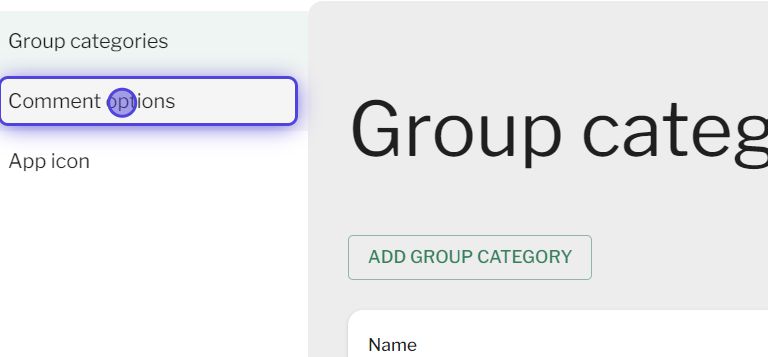
Select Comment Options
- ‘App icon’
- Choose a file to upload, where the image will be constrained to a maximum size of 72px by 72px.
- Select ‘Save’
- ‘App icon’
Manage Groups
Learn how to ‘Manage Groups‘
Steps
-
- Navigate to the ‘Workbar’ and select ‘Apps’ and then ‘Groups’’
- You will be directed to the ‘Groups’ homepage
- Select the ‘Manage Groups’ tab:
-
- Search Groups
- FEED SETTINGS
- Export
-
- Sort by:
- Created date
- Date of last post
- Filter by Admin and status
Feed settings for all Groups
Full description – Who joined which Group
-
- Group name
- Full group description
- Numbers of members
Short description – Who joined which Group
-
- Group name
- Shortened group description
- Numbers of members
One line – Who joined which Group
No feed message
EXPORT
The export will take place and you will be presented with the status of the export and the estimated time.
Social Apps – Customise Page
Please see attached ‘Customise Page – How to’ documentation for more information
Demo
Couldn't find what you're looking for?
We're here to help. Please raise a support request via our help desk and we'll get back to you asap